About contracts
Contracts are billing arrangements that determine how exactly the services you provide to your customers will be turned into revenue.
You will get started with the following three contract types:
- Time & Materials contract: This contract type lets you customize the role rates you are charging a particular customer, while you are billing for time and materials. For a description of this business model, refer to the context-sensitive help on this page: Contracts > Time & Materials.
- Block Hour contract: This contract type lets you sell prepaid blocks of service hours to your customers and keeps track of the remaining balance of hours. For a description of this business model, refer to the context-sensitive help on this page: Contracts > Block Hour.
- Recurring Service contract: This contract lets you track the hours worked, but the customer gets billed for defined services. For a description of this business model, refer to the context-sensitive help on this page: Contracts > Recurring Service.
This contract type requires that the business owner has set up the services you want to sell to your customers before you set up a contract. Refer to About services and bundles.
You can have more than one contract with each customer. You may have a Recurring Service contract for some newer equipment but maintain older equipment using a Time & Materials or a Block Hour contract. Or, you may set up a Recurring Service contract as the primary contract, but exclude certain roles and work types. Such labor then rolls over to a Block Hour or Time & Materials contract.
Creating recurring service contracts
As the finance manager, you will create recurring service contracts for individual customers, select the services that are part of them, optionally apply discounts, and assign the devices (products associated with this customer) that are covered under the contract.
- The easiest way to create a recurring service contract is to copy an existing one. If you have standard contracts, set them up under your own internal organization (the zero account) and copy them to customer accounts. Refer to the context-sensitive Help on this page: Left Navigation Menu > Contracts > Search > context menu > Copy Contract Wizard.
- For information on creating a new contract from scratch, refer to the context-sensitive help on this page: Contracts > Recurring Service.
Once the contracts exist, you must identify the devices (products belonging to this customer) that are covered by the contract's services. It is unlikely that you will want to do this manually.
- If you have a list of your customers' devices, you can import them into Autotask on this page: Left Navigation Menu > Admin > Admin Categories > Features & Settings > Devices > Device Import.
- If you use Datto RMM and have enabled the integration, customer devices will be synced to Autotask. You will simply need to map discovered devices to a contract on this page: CRM > Device Mapping > Device Mapping.
Best practices
Creating contracts
Each contract is customer-specific, so it is not possible to apply one contract to multiple customers. You can, however, copy a contract for the same or a different customer.
To set up a contract you want to use for multiple customers do the following:
- Create the contract under your local organization name (orgnization ID 0).
- Go toLeft Navigation Menu > Contracts > Search > context menu > Copy Contract Wizard. Refer to the Online Help for this page.
Creating recurring service contracts
Creating recurring service contracts can be a complex subject. We recommend that you follow the following best practices:
Make the contract period type and the service period type the same, and make it monthly, no exceptions
While it is possible to have a different period type for the contract and the services in the contract, this is not recommended AT ALL. It makes everything harder to understand and troubleshoot for no obvious gain. You can set up the same service with a different period type in minutes, and save yourself a lot of time later on. On the contract level, if you are selling quarterly or annual services, it is just as easy to create a separate contract for those services.
Start the contract on the desired billing date, for example the beginning of the month
The contract start date is always the billing date. While pro-rating is possible, starting the contract on the billing date simplifies matters and makes billing more transparent to the customer. You can always manually prorate the first month's charges while you are approving and posting the service.
Applying contracts
Whenever possible, you should not ask your technicians to make decisions about the billing contract. You can automate contract assignment using the following tools:
- Default contract: When you have one or more contracts set up for a customer, you should select one of them to be the default contract so it gets automatically applied when a ticket is created. You select the default contract when you add a contract on this page: NEW... Contracts.
- Exclusion contract: You can assign a different (or no) contract to labor entries based on the selected work type or role.
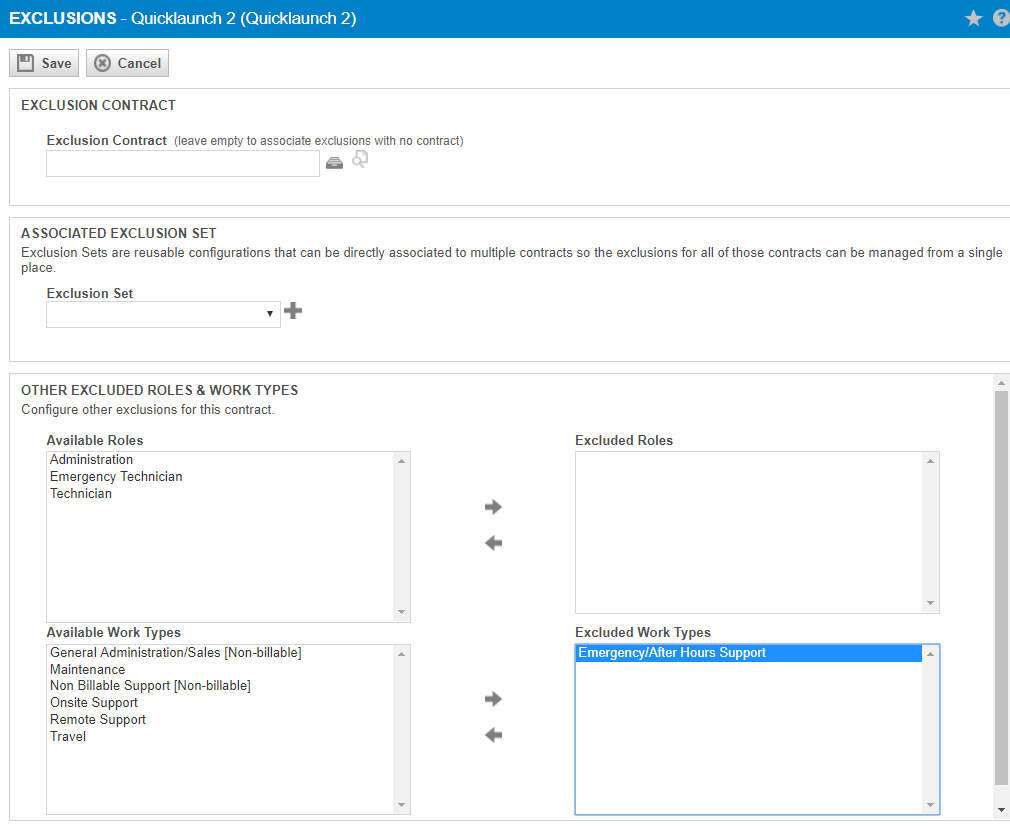
EXAMPLE You exclude Emergency/After Hours Support from your default Recurring Services contract.
When a ticket with this work type is created, the time entries inherit the work type of the ticket and are assigned to a different contract, even though the default contract is assigned to the ticket.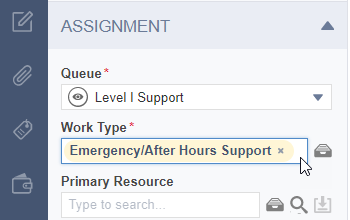
To assign an exclusion contract, open a contract and click the Exclusions tab.
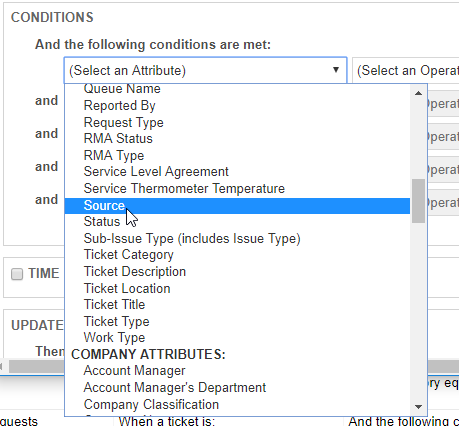
- Workflow rules: You can use workflow rules. In addition to the work type, you can select from a long list of ticket, organization, contact, device, and contract attributes to define the conditions when the default contract should not be applied.
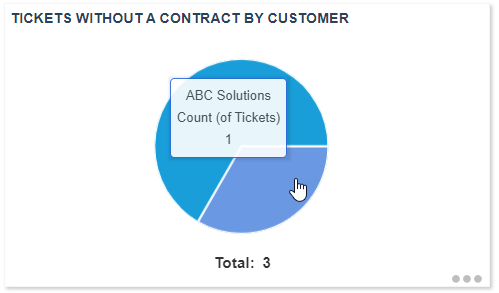
You can then create a widget to look for tickets without a contract by customer and manually assign a contract.