Notas de la versión 2022.3
No hay traducción disponible
Summary
This release includes an important new feature for the Client Portal: your clients can now access the Client Portal using a custom Identity Provider. We have also added an integration with Kaseya IT Glue.
New Features
 Client Portal access using an Identity Provider (IdP)
Autotask now supports access to the Client Portal using an Identity Provider (IdP). Instead of logging in to the Client Portal using a separate user account or their Google or Microsoft credentials, client users can log in to their identity provider and access the Client Portal using Single Sign-on.
For clients who use an identity provider, allowing Single Sign-on access will greatly enhance Client Portal visibility and increase its use. Client contacts will be more likely to create tickets right in the Portal, and the MSP's support costs will be reduced.
Requirements:
The IdP must support the SAML (Security Assertion Markup Language) 2.0 protocol.
Features
The following features are supported:
Configuring a custom IdP for a client
You can now configure an integration between a client's identity provider and their instance of the Client Portal. The configuration page is accessed from the Manage Clients page. Click Settings in the Configure IdP column.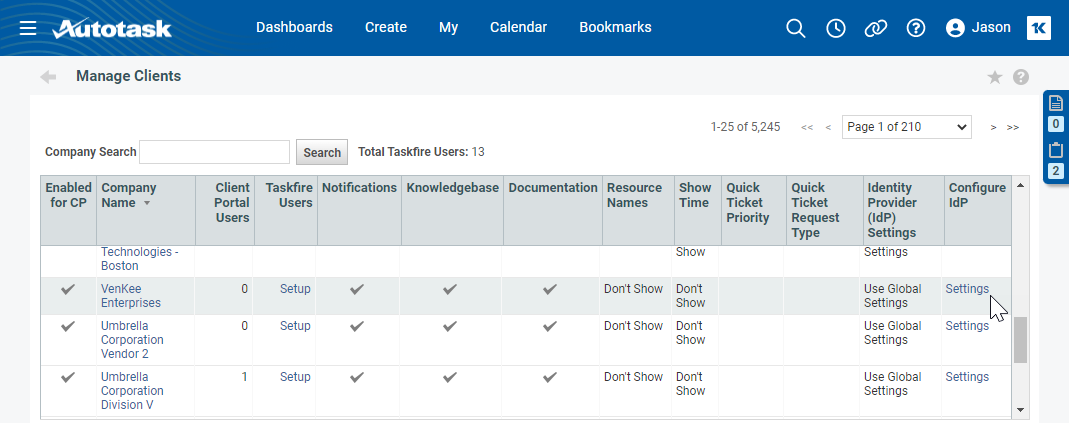
Configuring the availability of Google and Microsoft
For some time, it has been possible to log into the Client Portal using a Google or Microsoft account. However, this required that the email associated with the account was saved as the contact's Primary Email Address in Autotask. Also, these login options appeared on the login page and were not configurable.
Now, you can remove the Google and Microsoft login options for a specific client even if they are enabled in the Global Settings.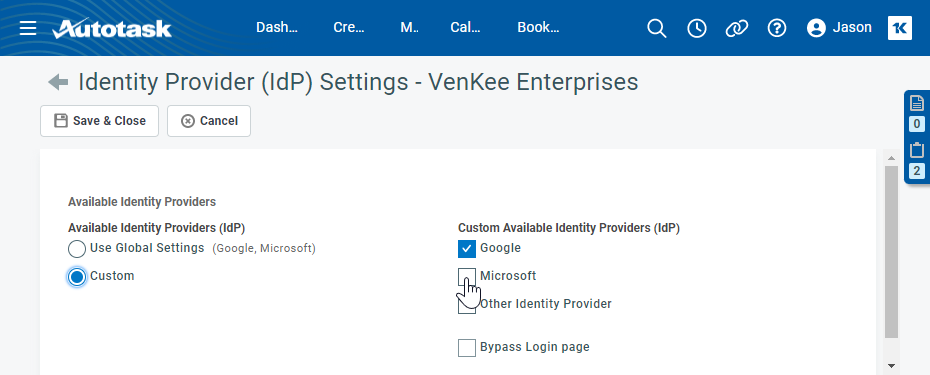
Bypassing the login page
If Other Identity Provider is the only selected option, you can choose to bypass the login page entirely and only allow access to the Client Portal from the IdP dashboard.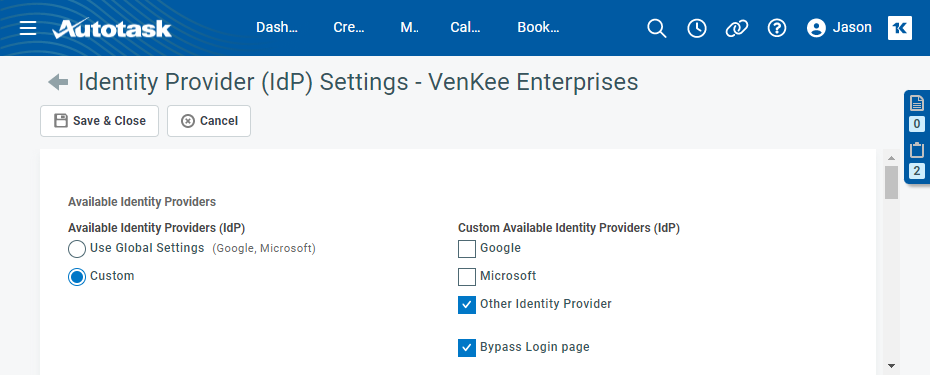
Configuring the ability to create a new contact
The identity provider often has the most current list of contacts for a customer. You can configure the integration to automatically add new client contacts to the Portal and to your Autotask database when a new user attempts to log in. You are even able to set a default and an elevated security level, and assign them to new contacts based on configurable claim names and values.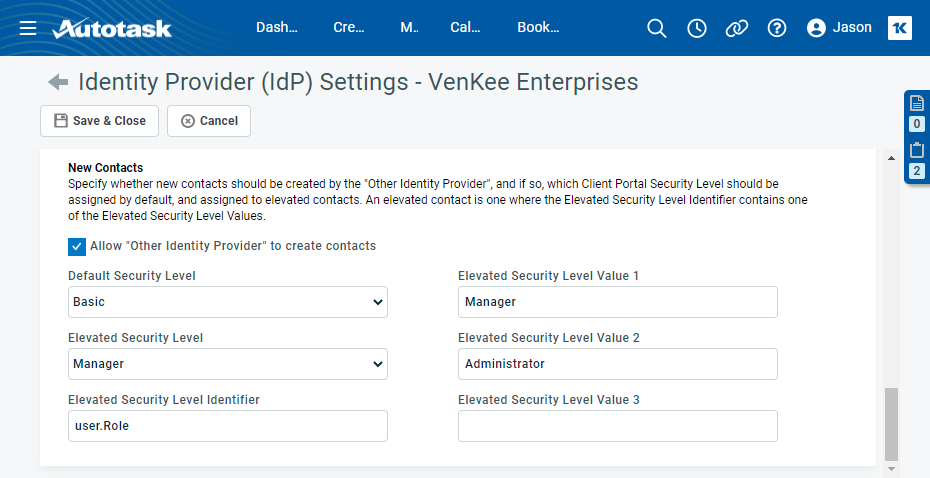
BETA: Integration with Kaseya IT Glue
IMPORTANT The integration is currently in beta release and enabled for selected customers only.
Customers who have implemented both Autotask and IT Glue can enable the integration between the two Kaseya products. The following features are supported:
Administrators can enable the IT Glue integration
Administrators can connect and disconnect their company's Autotask database to their instance of IT Glue. 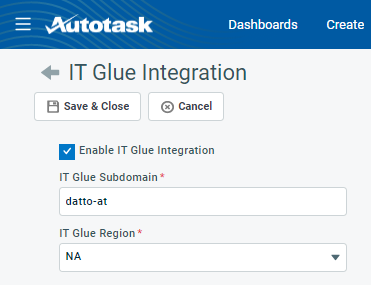
Saving the setup will make the Profile > IT Glue tab visible for all users, and allow them to connect their IT Glue user account to their Autotask user account.
Users can connect their Autotask user account to their IT Glue user account
Users can connect and disconnect their Autotask user account to their IT Glue user account. On the Profile page, click Establish Connection.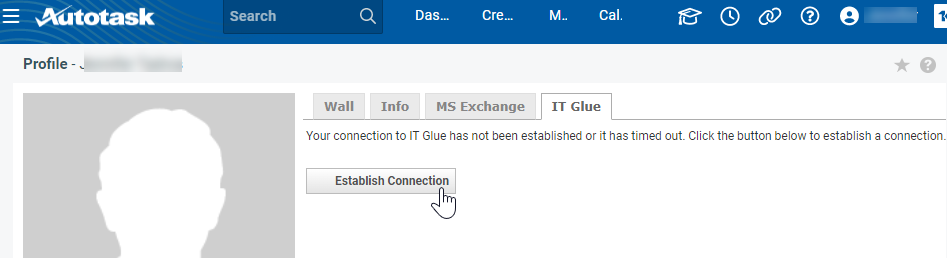
Authenticate to IT Glue and click Authorize.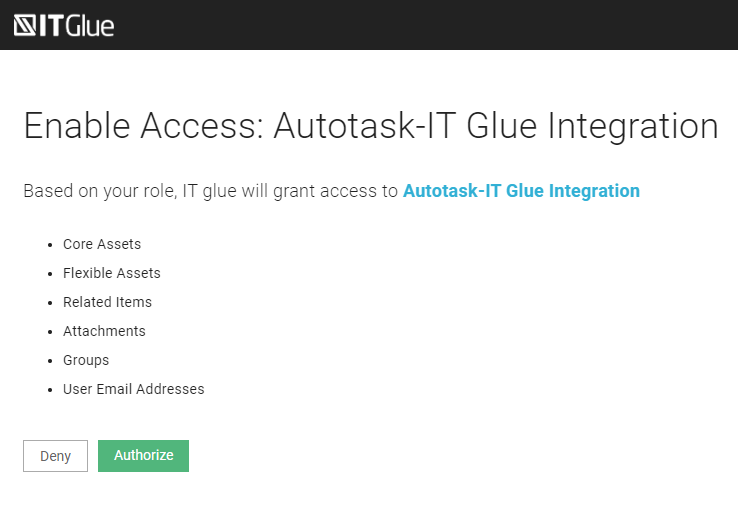
Users can view IT Glue documents and passwords on ticket insights
Users who have enabled the integration with IT Glue have access to two ticket insights, IT Glue Documents and IT Glue Passwords. The IT Glue insights suggest documents or passwords that are relevant to the current ticket, the assets associated with the ticket, and the ticket company. The recommendations for the documents and passwords are based on attributes of the ticket being processed by IT Glue's configurable rules engine.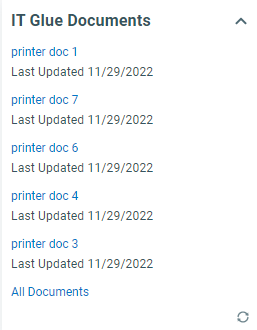
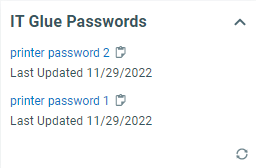
Clicking on the name of the item will open it in IT Glue.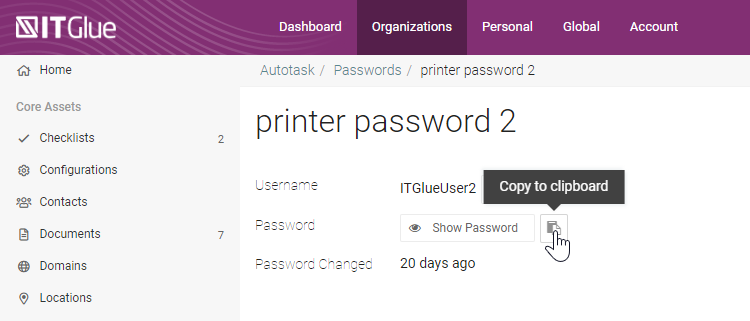
Users can view and complete IT Glue checklists in Autotask
In IT Glue, checklists are associated with companies. In Autotask, the company-specific checklists appear on the Company page > IT Glue Checklists tab. Users can view, complete, and un-complete IT Glue checklists in Autotask, or open and manage them in IT Glue.


